
Appearance
Settings
Open Settings from the sidebar or press ⌘ , on macOS, Ctrl , elsewhere. Search within Settings to find a control quickly.
Categories
Choose Settings at the bottom of the sidebar, or press ⌘ / Ctrl ,.
1 Settings Choose a category, such as Appearance or Experiments.
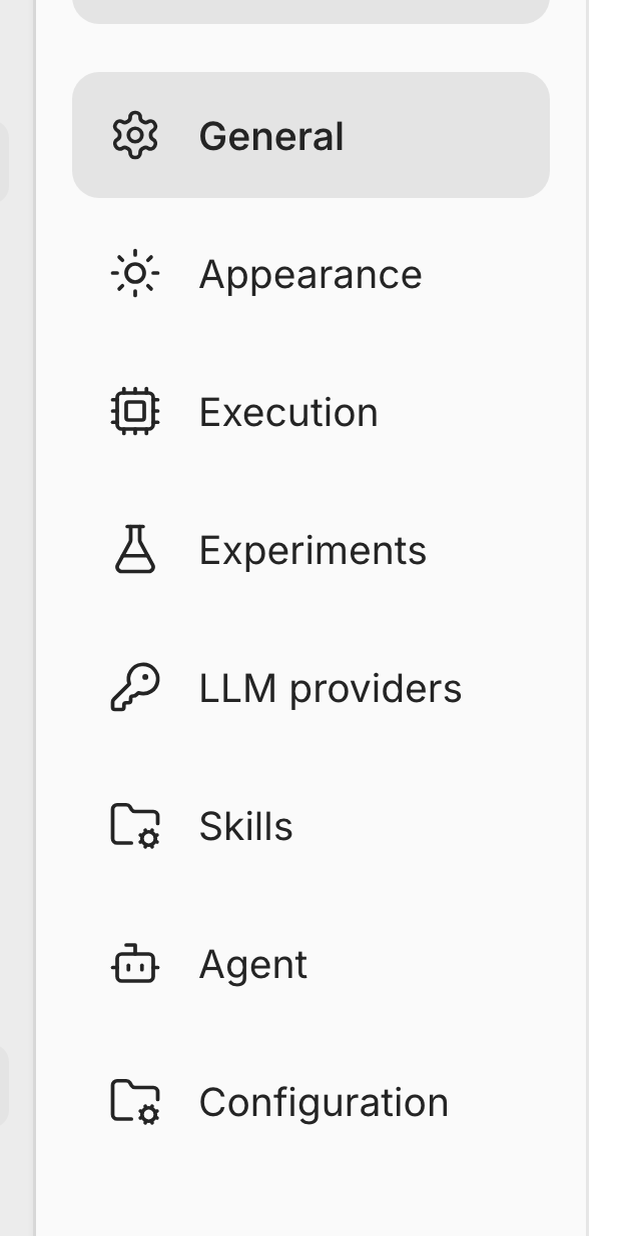
1 Appearance2 Experiments For panel arrangement, choose Model, Split, or Code in General → Model layout.

1 Model layout
| Category | Controls and information |
|---|---|
| General | This computer: the klars service and its connection, klars's own Python (its path, version and whether it can run captures; templates, the sample and imports use it) and the Default Python for projects, with a link to Configuration. Also Workspace (the project shell or the classic one; the window reloads, and it replaces a ?shell= choice), model layout, panel visibility, Reset layout, and Show tips again. |
| Appearance | Chrome theme, canvas theme, and live customization with history, import, export, and reset. |
| Execution | Capture reuse mode and execution cache clearing. |
| Experiments | Open models on Lineage, plus controls to create, inspect, and revoke tracking tokens. |
| LLM providers | API-key provider configuration and model settings. |
| Skills | Agent skill configuration. |
| Agent | Agent account controls, Default model status with Check again, and the current Conversation model when available. |
| Configuration | Current project, Python interpreter, Model setup, and service connection details. |
Some controls need an open project or an active service connection. Runtime and model options depend on what is configured on the service machine.
Appearance defaults
Fresh profiles start with Silver chrome and Paper canvas. Choose Graphite/Ink for dark mode or follow your system. Saved preferences are respected.
Customization files are applied live. See Customize the interface for supported files and recovery.
Capture reuse
| Mode | Behavior |
|---|---|
| Off | Always run a new capture. This is the service default. |
| Shadow | Check whether reuse is eligible while still running a new capture. |
| On | Reuse eligible captures, retaining their original evidence. |
Clear cache clears execution cache data. Saved graphs and research history are kept.
Model setup
Use Graph actions → Model setup to review a model’s entry point, example inputs, and Python environment. Configuration also provides a route to Model setup for the current project.
The desktop app does not bundle Python or PyTorch. Use an absolute interpreter path for predictable launches outside your shell.
Service environment
Useful service-side environment names include KLARS_PYTHON, KLARS_DATA_DIR, KLARS_HOME, and KLARS_CONFIG. Their earlier aliases remain accepted; use the KLARS_ names for new setups.
These are launch settings for the service. They are not browser storage settings. See Files & storage and the CLI reference.
Bosun
In General, Bosun: On/Off pauses or resumes the companion. Off stops its crew runs, closes its panel and hides bubbles. Your autonomy choices are preserved. Fresh workspaces use Suggest; Auto-safe requires an explicit choice. See Bosun.