
Appearance
Install klars
klars has desktop builds for Apple Silicon Macs and Windows x64. Linux access uses a browser connected to klars serve.
Availability
Public downloads are not listed here yet. Visit klars.dev for availability. The steps below apply if you already have a release artifact from a trusted distribution channel.
macOS · Apple Silicon
Releases are distributed as a disk image (.dmg). Current builds are unsigned and not notarized.
Move klars to Applications
Open the disk image and drag klars.app into
/Applications.Open the app
In Finder, right-click klars.app and choose Open for the first launch.
Choose your Python environment
When opening your model, go to Graph actions → Model setup → Python environment. Use the absolute path to your project’s interpreter.
If macOS still blocks a copy you trust, remove its quarantine attribute and try again:
sh
xattr -dr com.apple.quarantine /Applications/klars.appVersion 0.1.0 used the name klars Local.app. If you have that release, use its actual name in the path.
Windows · x64
Releases include an unsigned installer (.exe) and a portable ZIP. Run the installer, or extract the entire ZIP and open klars.exe.
Microsoft Defender SmartScreen may show Windows protected your PC. For an artifact you obtained from a trusted source, choose More info → Run anyway.
Python and model libraries
Python and PyTorch are not bundled. The app uses an environment on your machine. That environment also needs the libraries your model imports; Hugging Face models need Transformers.
An app launched from Finder does not inherit your terminal’s active virtual environment. Select an absolute interpreter path in Model setup. Python troubleshooting →
Browser and Linux
A provisioned klars serve installation serves the same workspace without a desktop window. You need Node.js 22.13 or newer and a suitable machine Python environment. See remote browser access for SSH forwarding and startup.
There is no public headless archive download linked from these docs yet.
Check your installation
After installing, open klars and explore the sample. These captures show the shared browser interface; macOS and Windows installer dialogs are not pictured.
Open Settings from the sidebar. When the categories have loaded, choose Done to return to your workspace.
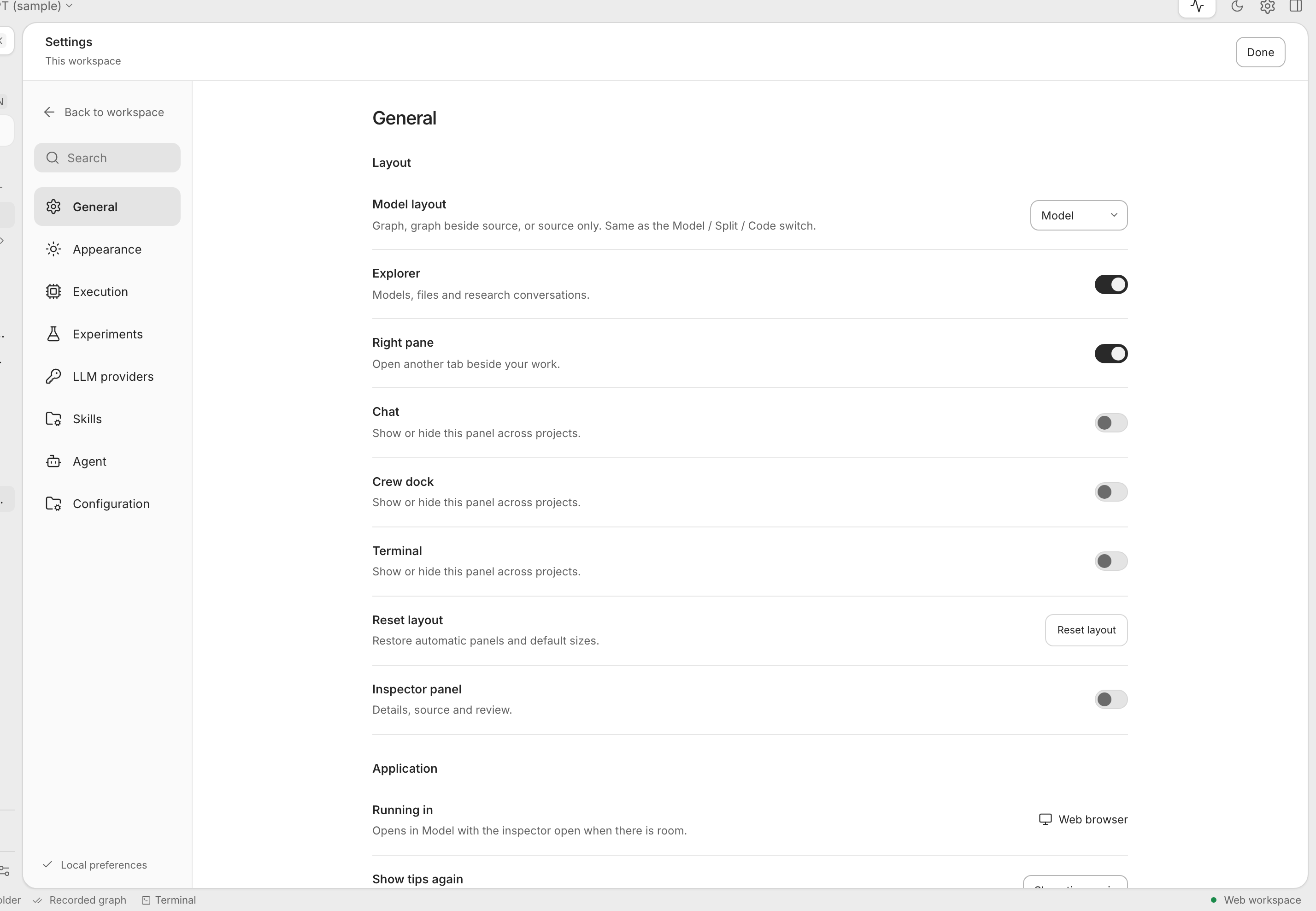
1 Done — return to the workspace For your own model, open Settings → Configuration and choose Open setup.

1 Open setup Under Python environment, enter your interpreter’s absolute path in Python executable and choose Use environment.
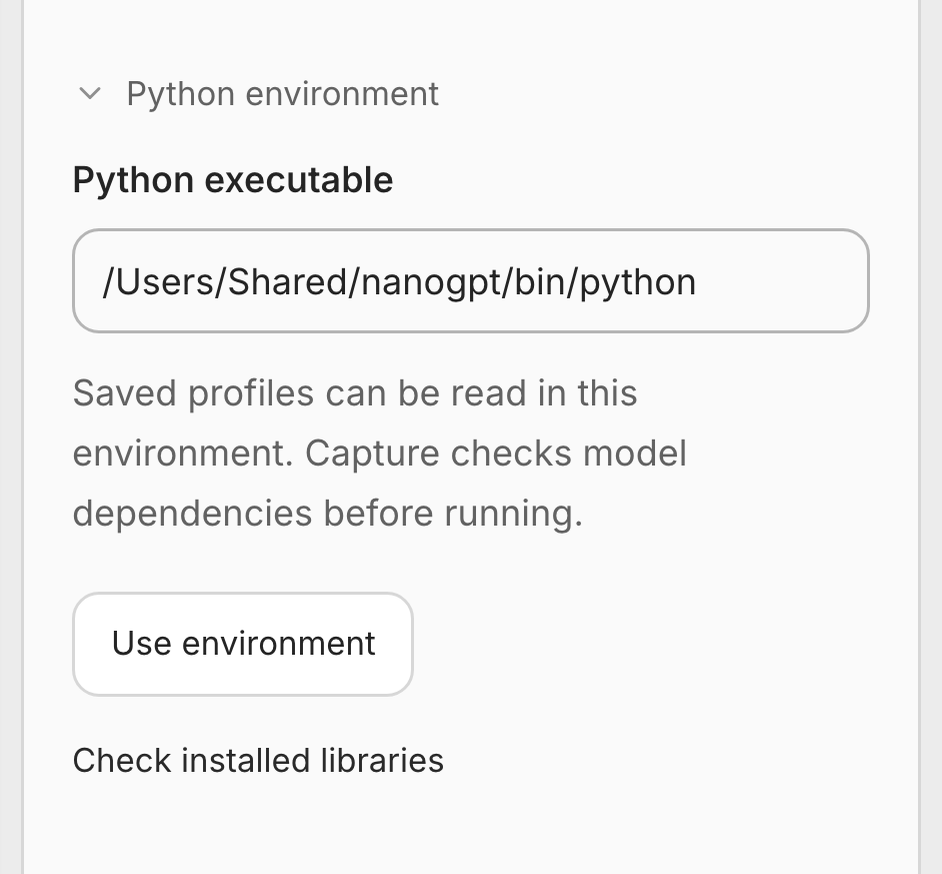
A virtual environment with PyTorch installed, selected as the Python executable. Use an interpreter on the machine running klars.1 Python executable2 Use environment
Update your desktop app
Quit klars fully, replace the app with the newer release, and open it again. On macOS, use ⌘ Q; closing its window leaves the app running. You may need to approve a new unsigned copy again.
Workspace data lives separately from the app, by default in ~/.klars/app. Replacing the app does not remove that directory. See storage for overrides and migration behavior. Continue with first launch.