Appearance
Your first project
A project is one codebase or model, plus what klars records about it. Start one from New project: in the sidebar, on Home, in Setup, or in search. You can inspect a graph before connecting an agent.
The quickest path: a template
Choose New project, then Template. Select a model, check its Example input shape and Input type, and choose Create project.
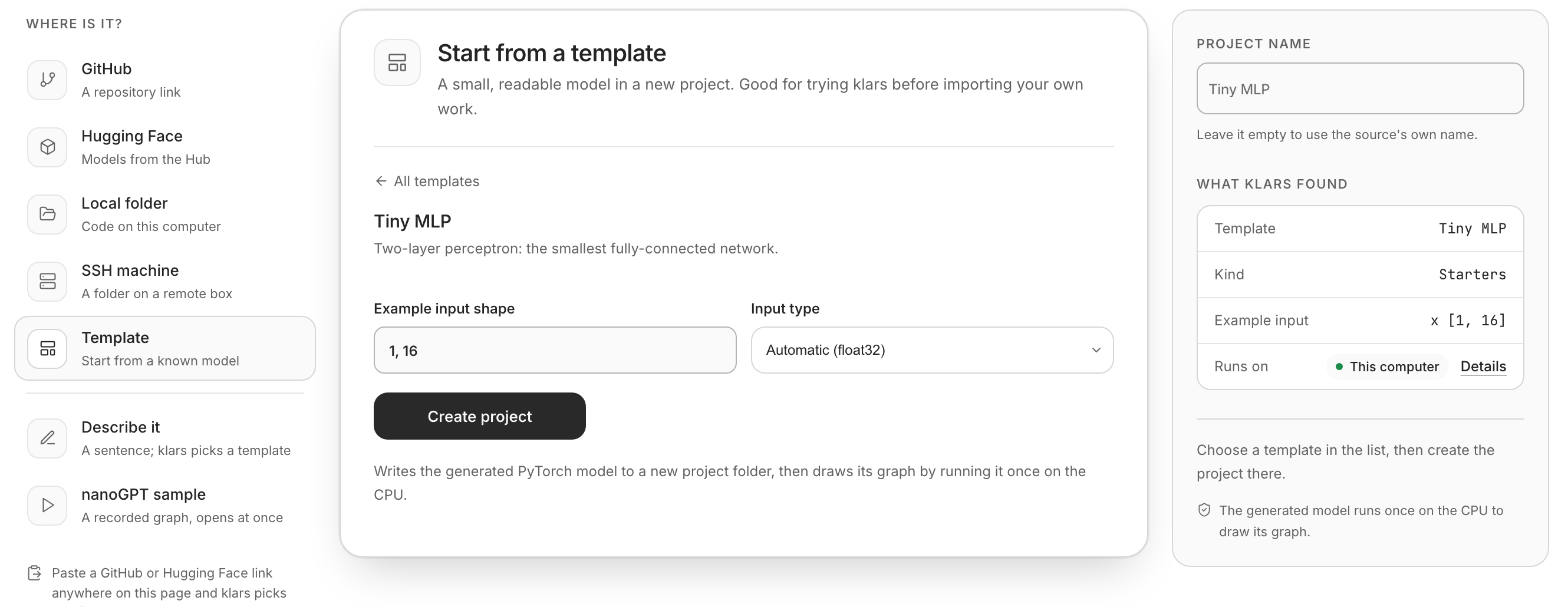
1 Template2 Example input shape3 Create project klars shows a checklist while it gets the project ready: the source, the model it found, the Python environment, the graph capture, and the agent. The generated PyTorch model runs once on the CPU to draw its graph.
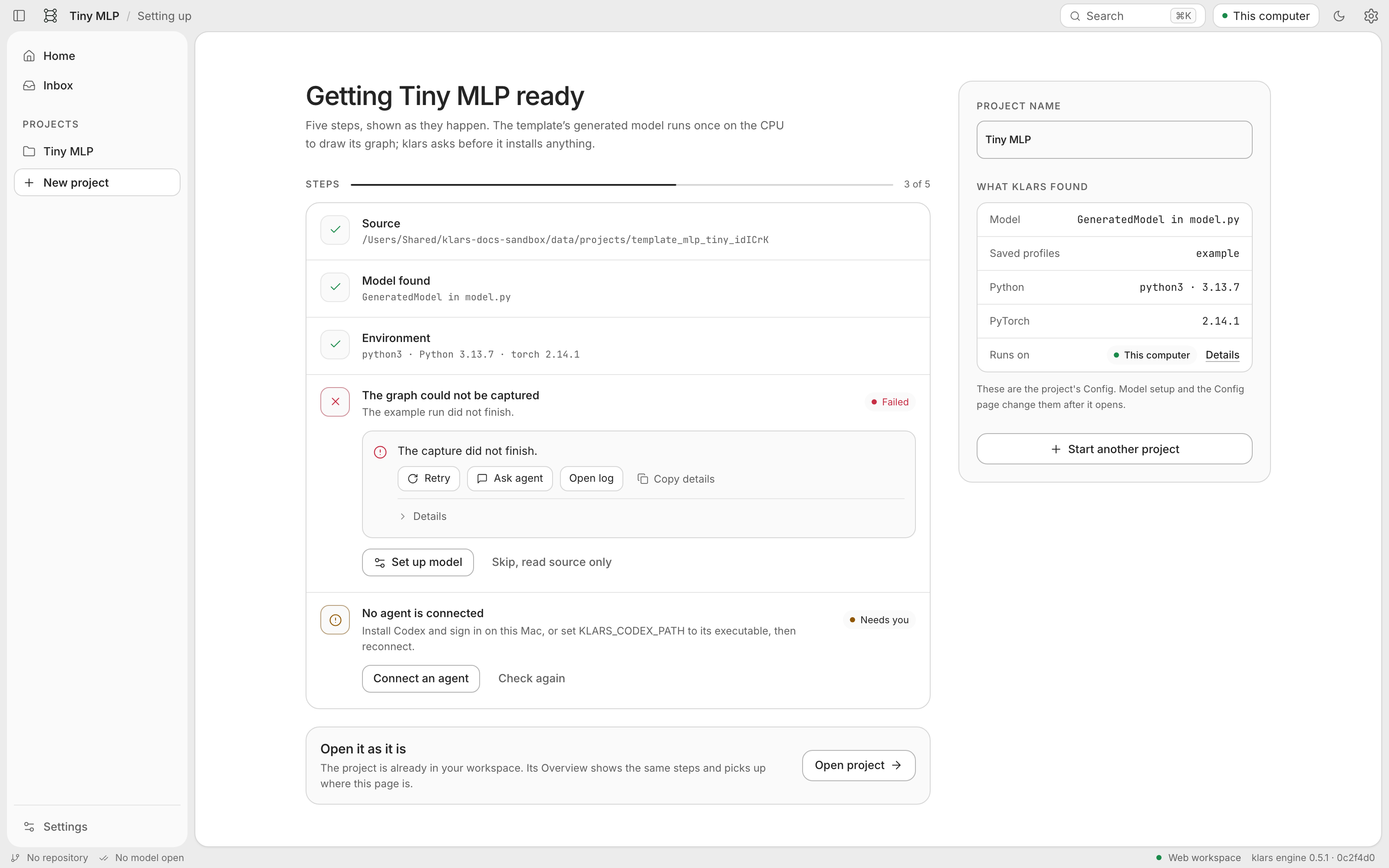
On this computer the capture stopped; Set up model is the way on.
This path needs a Python environment with PyTorch. If the checklist shows The graph could not be captured, choose Set up model, open Python environment, select an environment with PyTorch (also when it is already marked Current), choose Use environment, and then Generate graph. Open project opens the project's Overview, which shows the same steps.
If the template list says The template engine is unavailable (klars's own Python is too old or lacks the engine's libraries), choose an environment under Choose a Python for templates, or enter its path and choose Check, then Use for templates. The templates are listed with that Python, and the new project keeps it.
Open your code
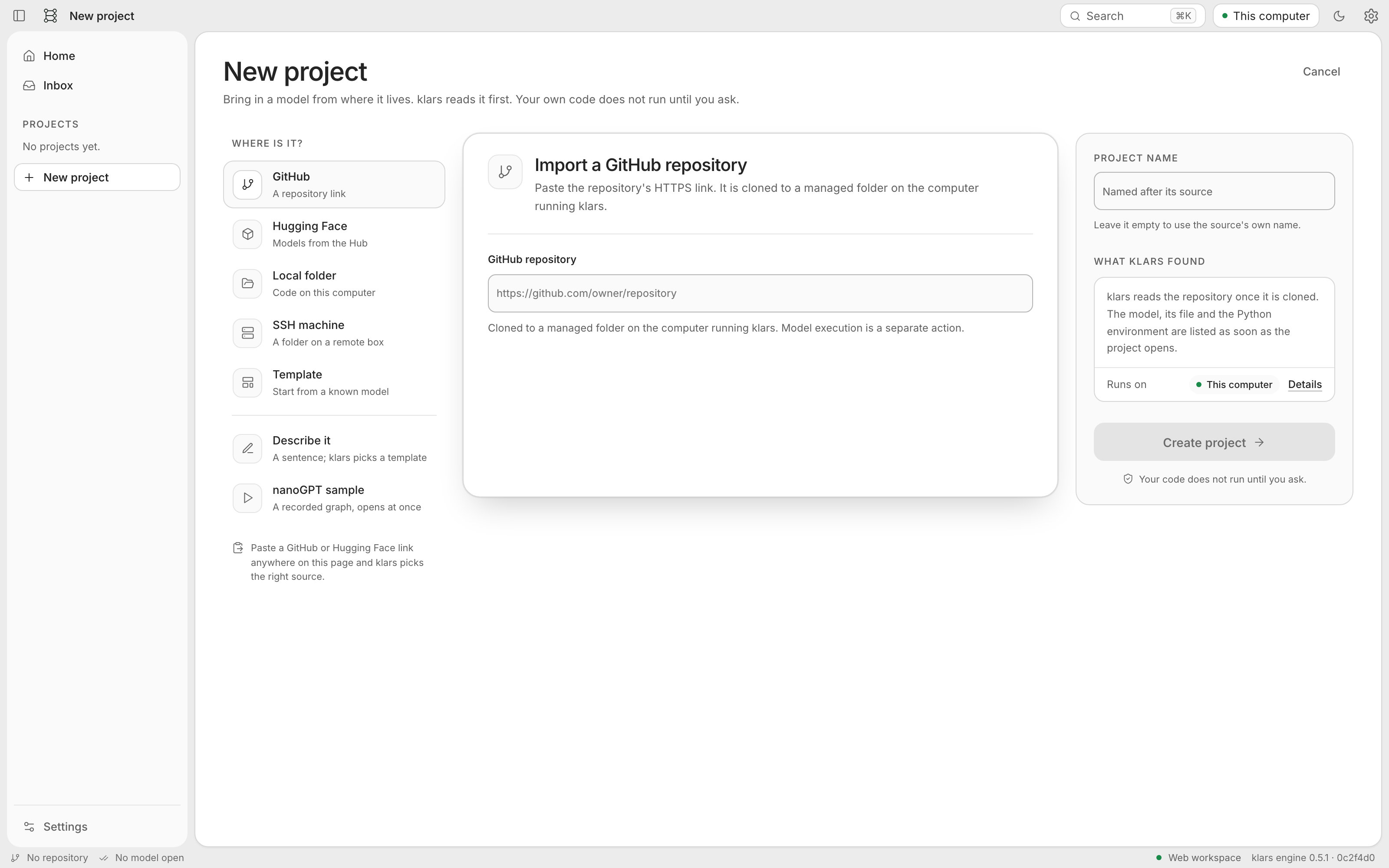
Choose New project, then Local folder. Enter the path of the folder that holds the model code, on the computer running klars; in the desktop app, Choose folder… picks it. Choose Create project.
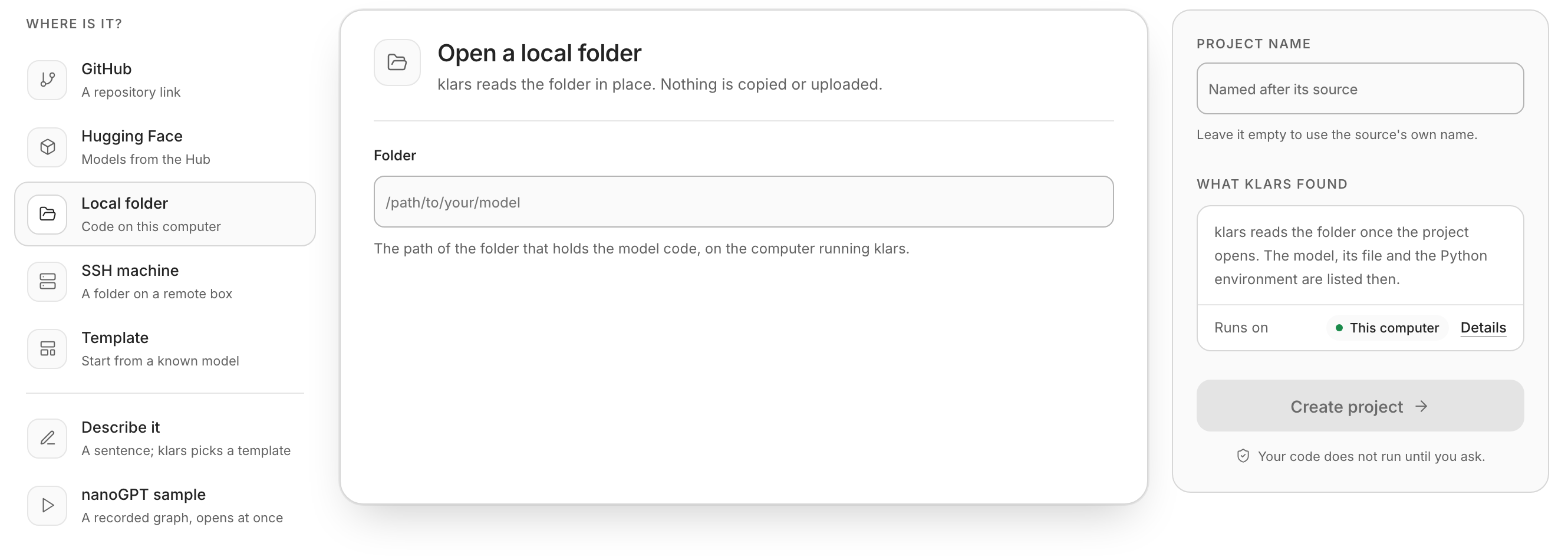
klars reads the folder in place. Nothing is copied or uploaded.1 Local folder2 Folder path3 Create project
For a GitHub repository, choose GitHub and paste its HTTPS link; it is cloned to a managed folder on the computer running klars. You can also paste a GitHub or Hugging Face link anywhere on the New project screen, and klars picks the source.
Let klars discover the model. If it needs more information, open Graph actions → Model setup and review the model entry point, inputs, and Python environment. Capture the model when you are ready; capturing your code runs it in the selected environment.
klars first tries to read a graph from the discovered model’s source. This does not run the model or record tensor values. An executed capture is a separate step.
Read your first graph
Start at the model overview. Follow the connections from input to output, expand an interesting block, and select a module to inspect its tensor shapes and parameter information.
In the inspector’s Source section, choose the file-and-line link to read the selected declaration. Source opens when you ask for it; it does not open automatically with the graph.
Ask a focused question
Connect an agent, select a component, and use its Ask about … button, which includes the component’s module path, to bring it into chat. Try a question tied to the selected module:
What shape does this module expect, and how does its output connect to the next block?
Tool calls and proposed changes appear in the conversation. Review a proposal before applying it.
Come back later
Home’s Pick up where you left off card returns to the project page you were on last. See Resume your work.
Continue with opening models or exploring the graph.