
Appearance
Terminal
The Terminal runs commands on the computer hosting your workspace. In desktop, that is your machine. With klars serve, it is the machine running the service.
Open a session
Open a model or project, then choose Terminal in the status bar.
1 Terminal Choose New terminal to start a shell in the service user’s home directory. Change to your project folder before running project commands.
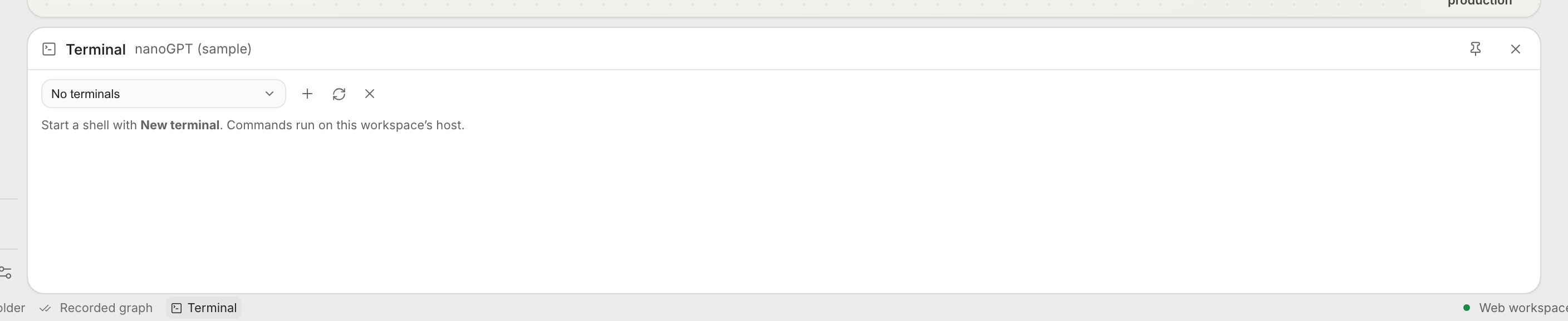
1 New terminal
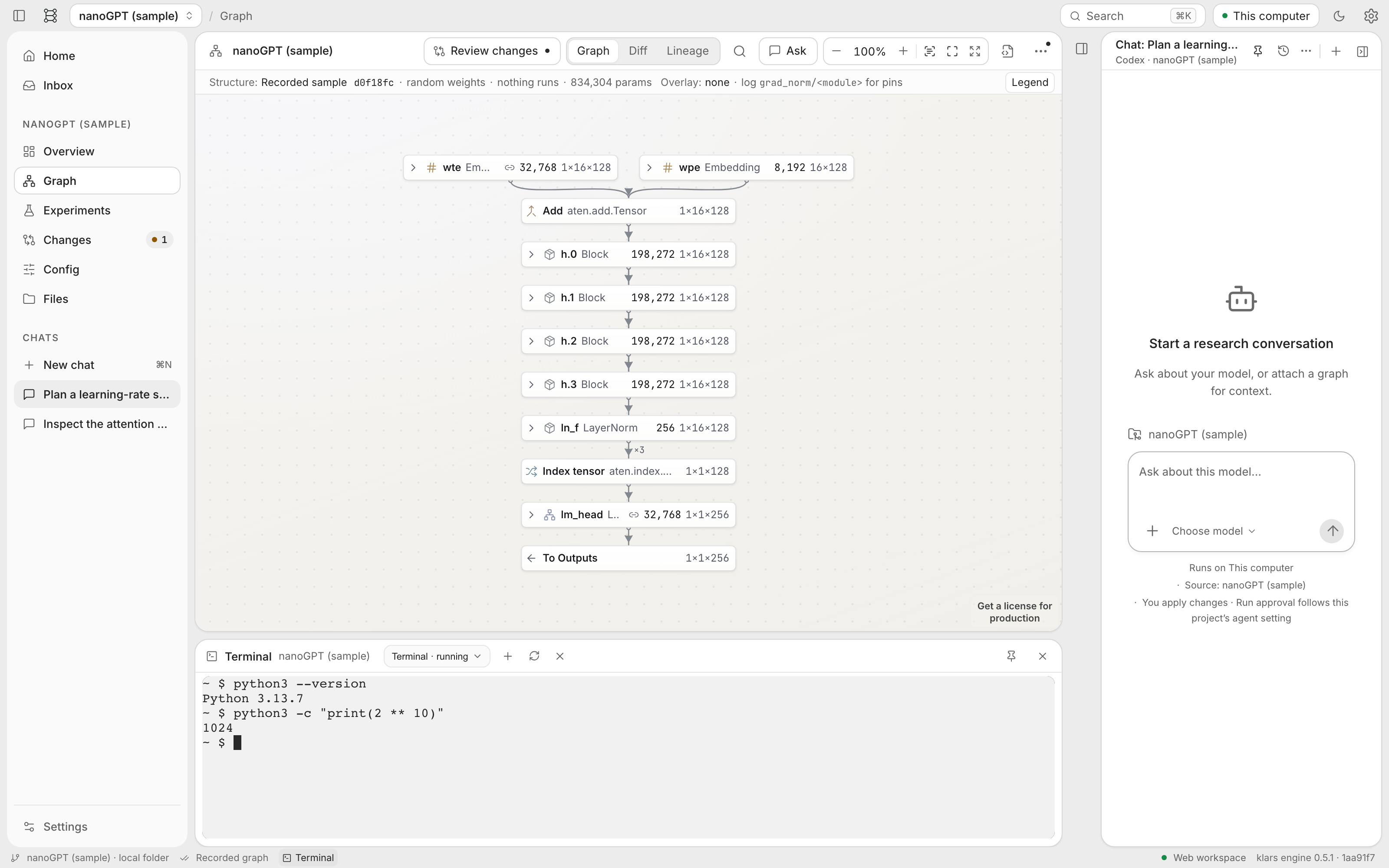
Use the Terminal session picker to switch sessions. Refresh terminals reloads the available list after a reconnect.
Hide or close
To end the selected shell, choose Close terminal. Use the drawer’s Hide terminal control when you only want to hide it.

1 Close terminal
Hide terminal closes the drawer and leaves its sessions available. Reopening the drawer reconnects to the same service-owned session.
Close terminal ends the selected session. A full service shutdown also ends its owned processes; terminal persistence is not a job scheduler.
Ask about output
Select text in the terminal and run Ask the agent about terminal selection from workspace search. This lets you ask about an error without copying a long transcript into the composer yourself.
Keyboard input belongs to the shell while Terminal has focus. Many workspace bindings deliberately yield to it. Use F6 to move to another visible workspace region.
If nothing appears
Confirm that a project is open and a terminal session is selected. Try Refresh terminals, then New terminal. If the service disconnected, reconnect before trying again.
Older macOS packages had a missing native terminal dependency; use a current build. More recovery steps are in troubleshooting.