

Appearance
Secrets & credentials
Provider keys and saved credentials belong to the local service’s private secret store. Use the dedicated controls instead of adding a key to source, a notebook, or a normal chat message.
Provider accounts and API keys
Open Settings → LLM providers. Enter your own value in the provider’s masked API-key field and choose Save key. Then select that provider’s Model.

No credential is entered or exposed in this capture.1 OpenAI API key2 Save key
Use Settings › Agent for Codex or Claude Code sign-in. Their CLIs manage their own credentials on the service machine.
Use Settings › LLM providers for OpenAI, Anthropic, or OpenRouter API keys. Managed provider keys are stored in the encrypted local vault; public workspace records hold descriptors rather than resolved values.
Removing a provider removes its saved vault credential. It does not silently choose a different billed provider.
Private request cards
Review the request title and reason. Enter the value in Secret, or choose Decline if you do not want to grant it.
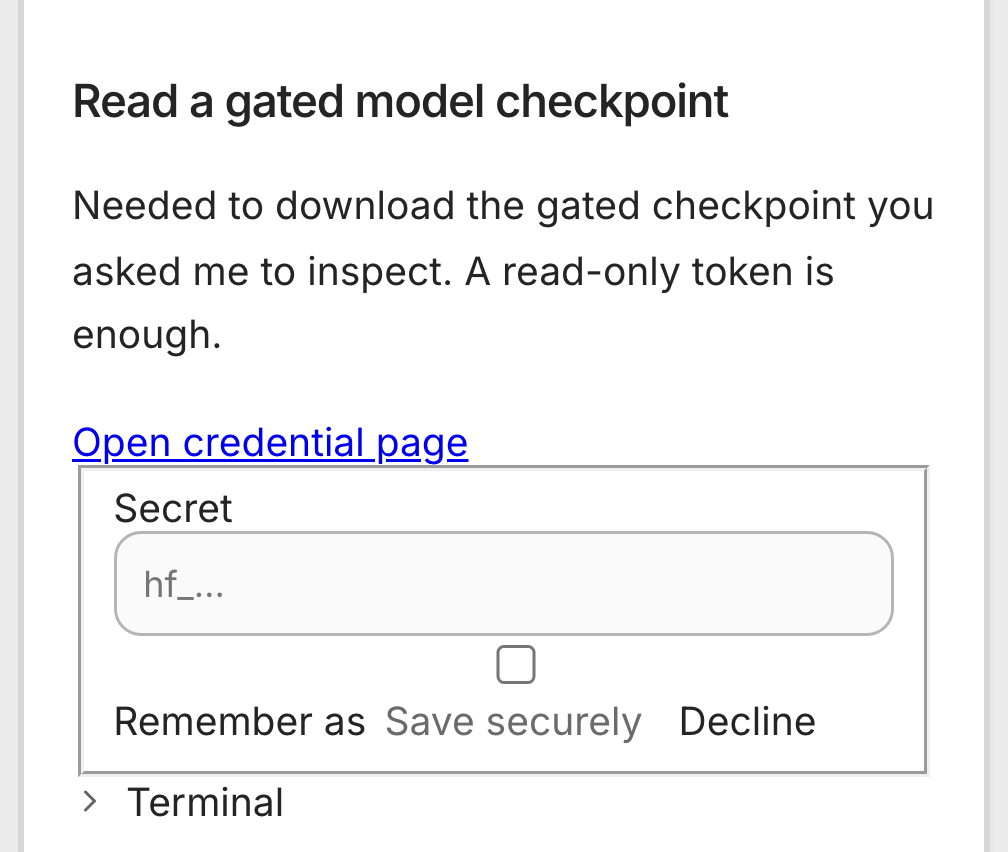
The request was created through the service API. Its Secret field is empty.1 Secret2 Decline Optionally check Remember as, enter a local name, and choose Save securely.
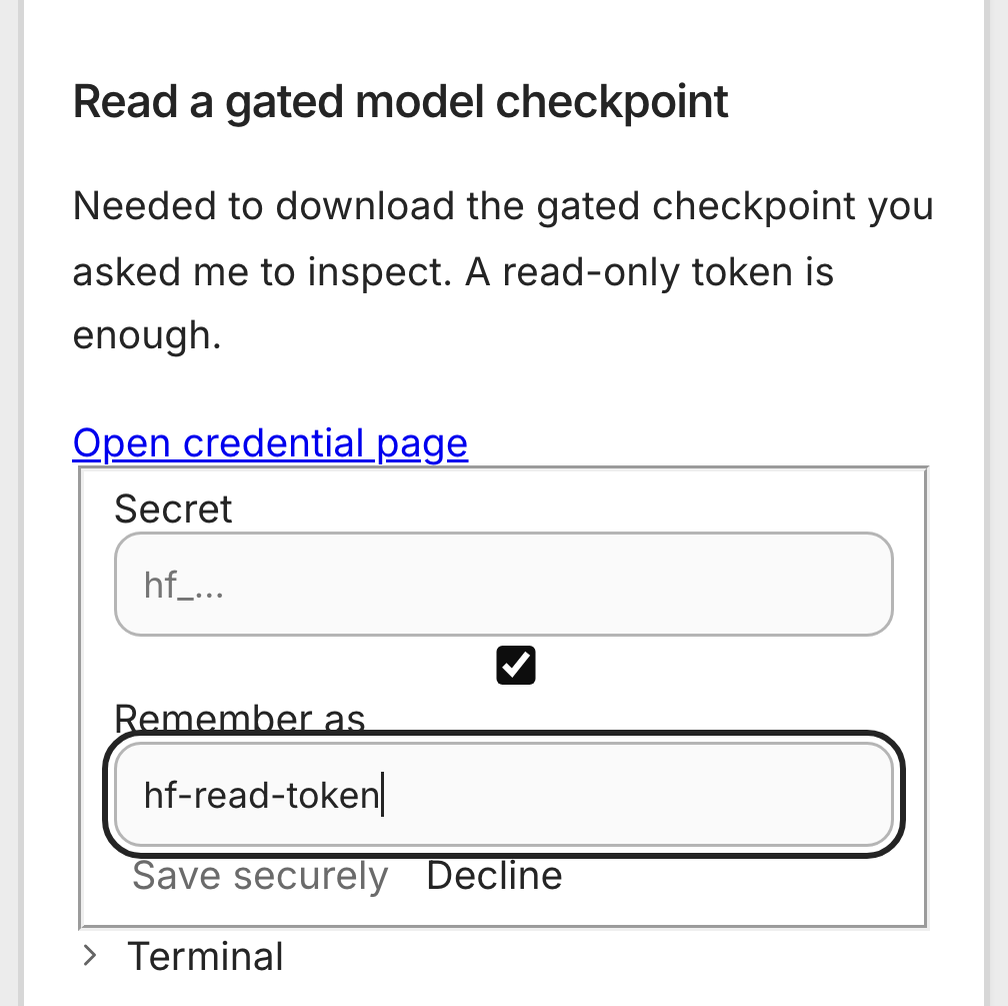
The token will be saved as hf-read-token. No credential value is shown.1 Secret name2 Save securely
When a project conversation presents a Secret request card, review its title, purpose, and any credential-page link. Enter the value in its masked Secret field and choose Save securely, or choose Decline.
Remember as saves a named local credential for later use. The field clears on submission, and the value is not added to the conversation text.
A card requesting file delivery explains that the agent’s commands can read a private file for about 24 hours. Choose whether that delivery is appropriate before you submit it.
Where the store lives
The vault is under the private service data directory. On desktop, the operating system’s protected storage wraps the master key. A local service without desktop protected storage can use an owner-only key file; access to that file and the encrypted vault is enough to decrypt it.
There is no automatic cloud synchronization of saved workspace credentials. Agent provider requests still go to the provider you select.
If the store is locked
Existing credentials require the original vault key. If desktop cannot decrypt its OS-protected key, it sets the entire old store aside as secrets.unreadable-<timestamp> under the service data directory, creates an empty store, and asks you to enter provider keys again. Opening desktop does not guarantee access to the old credentials.
For a provisioned headless service, the operator can supply KLARS_SECRET_KEY at startup. It must be the correct canonical base64-encoded 32-byte key for that store.
Do not replace a vault key to clear a locked-store error. You need the key that encrypted the existing credentials. Keep launch keys out of workspace files and logs.
A 1Password picker is not supported in this build. See troubleshooting for recovery steps.