

Appearance
Agents & approvals
Keep the question, model, and evidence together. Start a conversation about the whole project or ask about a selected graph component.
Connect a runtime
Open Settings and choose Agent for CLI account controls.
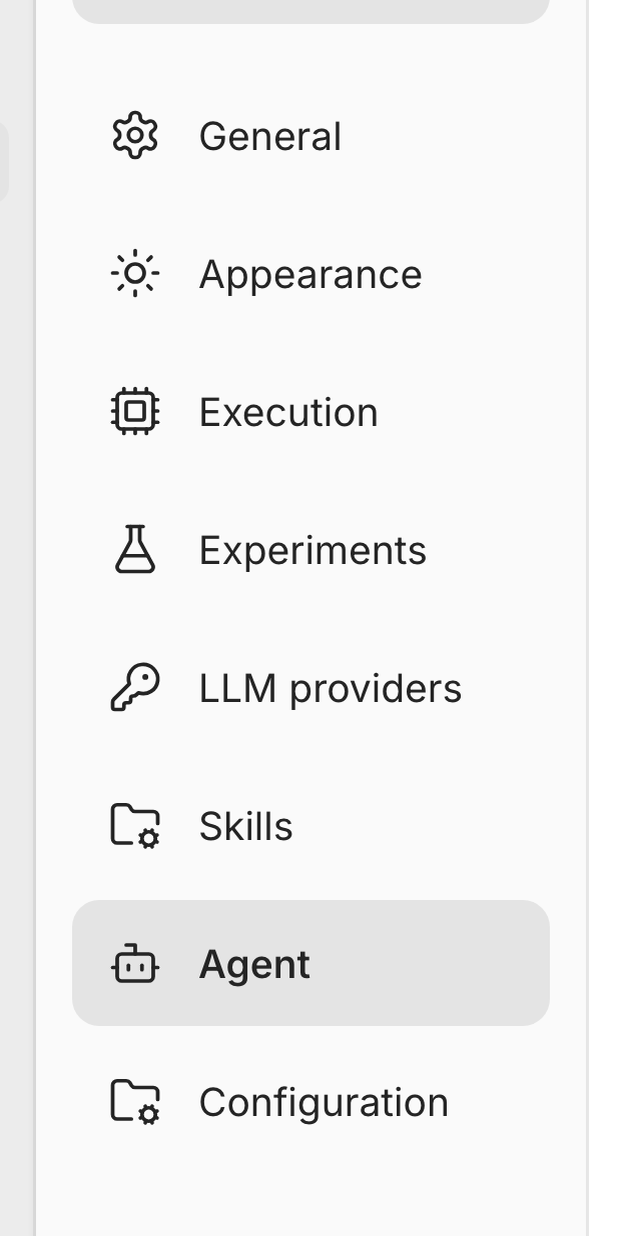
1 Agent After installing or signing in to your runtime on the service machine, choose Check again.

Codex signed in with an example account. Check again re-reads the sign-in state.1 Check again
Open Settings › Agent for Codex or Claude Code account controls. These use their CLI credentials on the computer running the klars service.
For an API key, open Settings › LLM providers, enter an OpenAI, Anthropic, or OpenRouter key, and choose Save key. Then choose a Model in that provider’s settings to make it available. Use the composer’s picker to select the runtime and model. Each entry shows its readiness; sign-in and missing-key states stay visible.
Use ⌘ / Ctrl Shift M to open the runtime and model picker when the chat composer is available. Available models and capabilities depend on the connected runtime.
Check a public GitHub repository
Ask a new chat to find a public project or verify a GitHub link. klars can search GitHub and read the repository's README before you attach a source. Look for GitHub activity in the transcript and the source link in the reply. Choose Attach GitHub repository on a verified result to open the attachment dialog with the URL filled in. Confirm there to attach it to the conversation.
Ask about your model
Select a graph component and choose its Ask about … button, which includes the module path, or start a new chat and attach a source. Add to chat offers GitHub repository, Hugging Face model, and Local folder.
Be specific about the evidence you want:
Explain how this block changes the tensor shape. Point me to the relevant source before proposing a change.
The transcript shows tool activity alongside replies. Scroll up to read earlier work; use Jump to latest to resume following the response.
Follow the crew
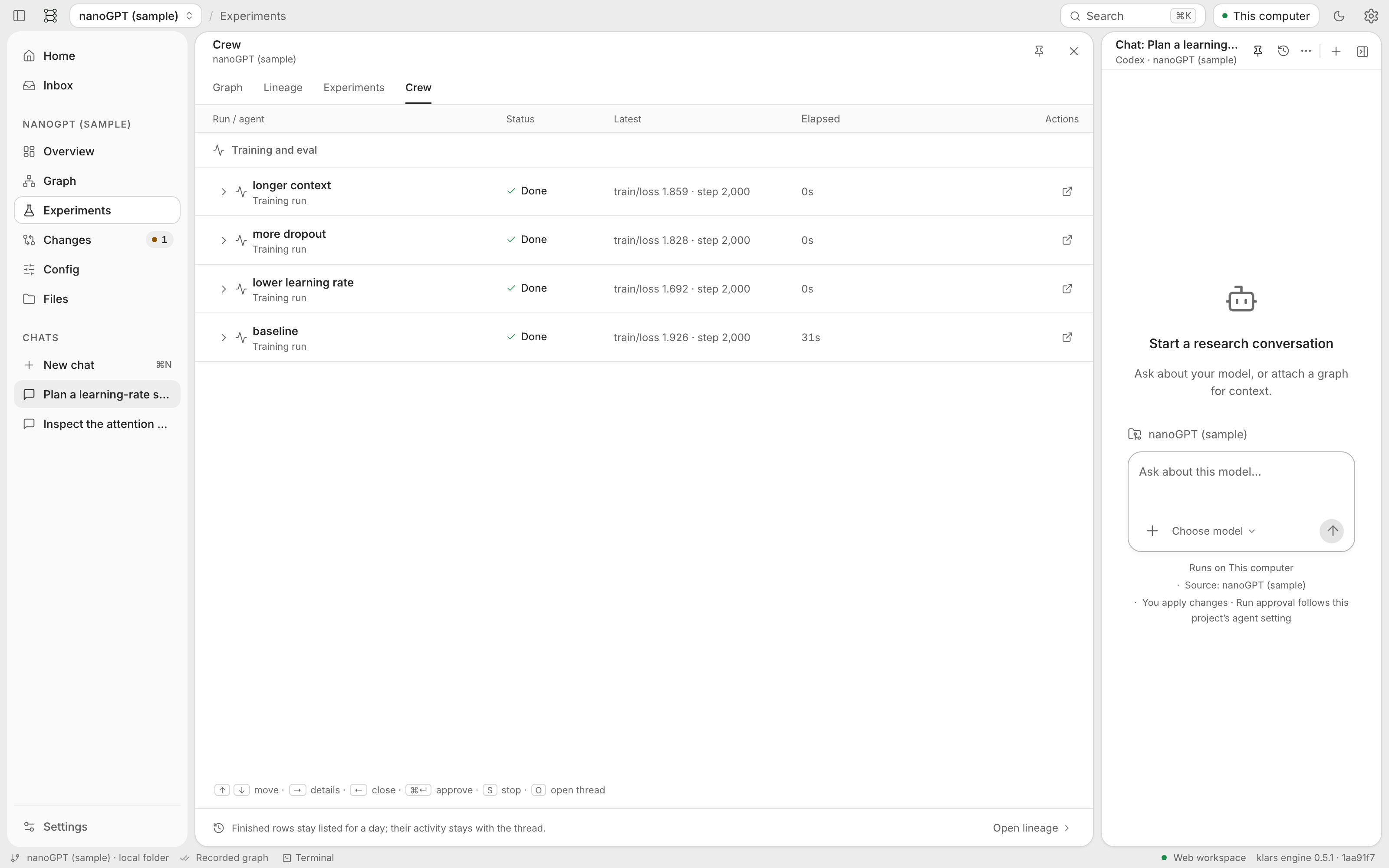
Run Open agent crew from workspace search, then select a row to see its details.

1 Show details
Open Open agent crew from workspace search. The crew tree shows work and the conversation or project it belongs to. Expand a row for its details.
In automatic mode, the dock expands for live work or unseen activity. When there is nothing to list, it can remain as a quiet row. Selecting an activity opens the relevant object in its project. An approval can take you back to the conversation when it needs a full diff or other detailed review.
Review before applying
When a tool asks for approval, its card says what the tool will do, such as Run a command or Propose a code change, and names the command or files when the request has them. Read the rationale and any diff shown. The gate, the tool's name and the exact arguments are under Technical details, which stays open when there is nothing to summarize. Choose Approve or Deny. Requests to publish, push, or deploy are marked as requiring you.
From the keyboard, focus the approval card and press ⌘ Enter (Ctrl Enter on Windows and Linux) to approve, or Esc to deny. Enter alone on the card does nothing, so tabbing onto a request never approves it; on a focused Approve button it approves as usual. In the Inbox, only the buttons decide.
For source proposals, choose Changes in the sidebar, or Review changes in the graph toolbar when proposals are waiting. Check the proposed source and graph evidence, then choose Apply change or Discard.
Before restoring a source snapshot, inspect its file changes in Source snapshots. The restore confirmation shows the approval rationale; review the separate snapshot diff before requesting approval.
Use Compare & review for the distinction between comparing evidence and applying a change.
Keep credentials private
Use provider settings or a private secret request card for credentials. Do not paste API keys into a normal chat message. Secrets & credentials →