

Appearance
Keyboard shortcuts
These are the default app bindings. Use Keyboard shortcuts in the app to check the commands available in your build. On macOS, ⌘ is Command and ⌥ is Option.
Workspace
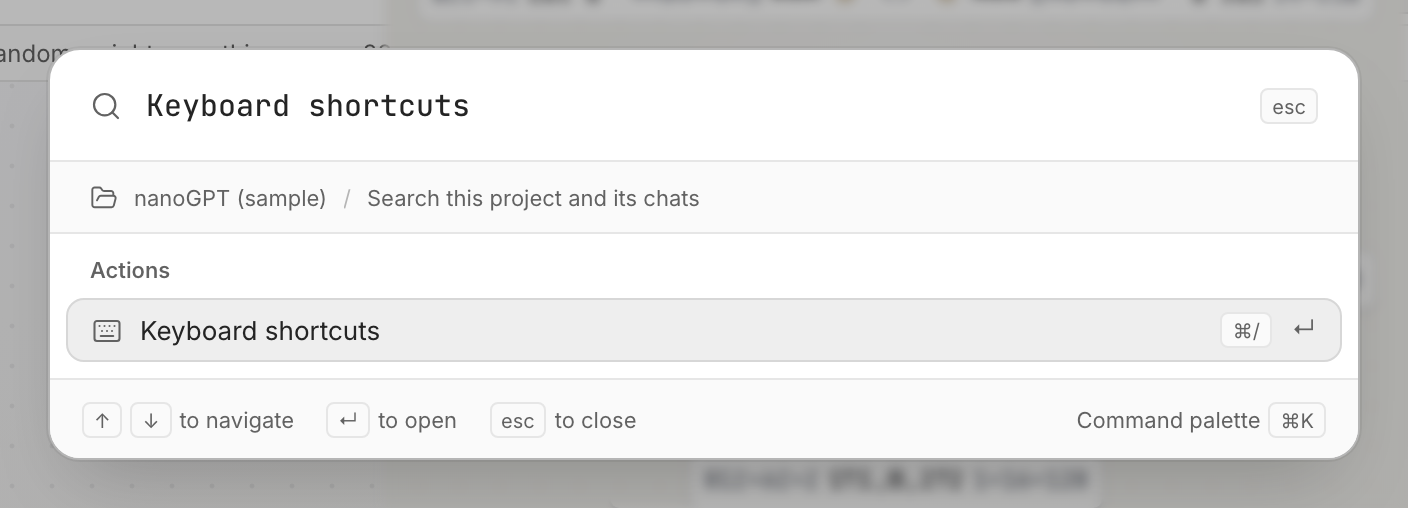
Press ⌘ / Ctrl K, search for Keyboard shortcuts, and choose the command.
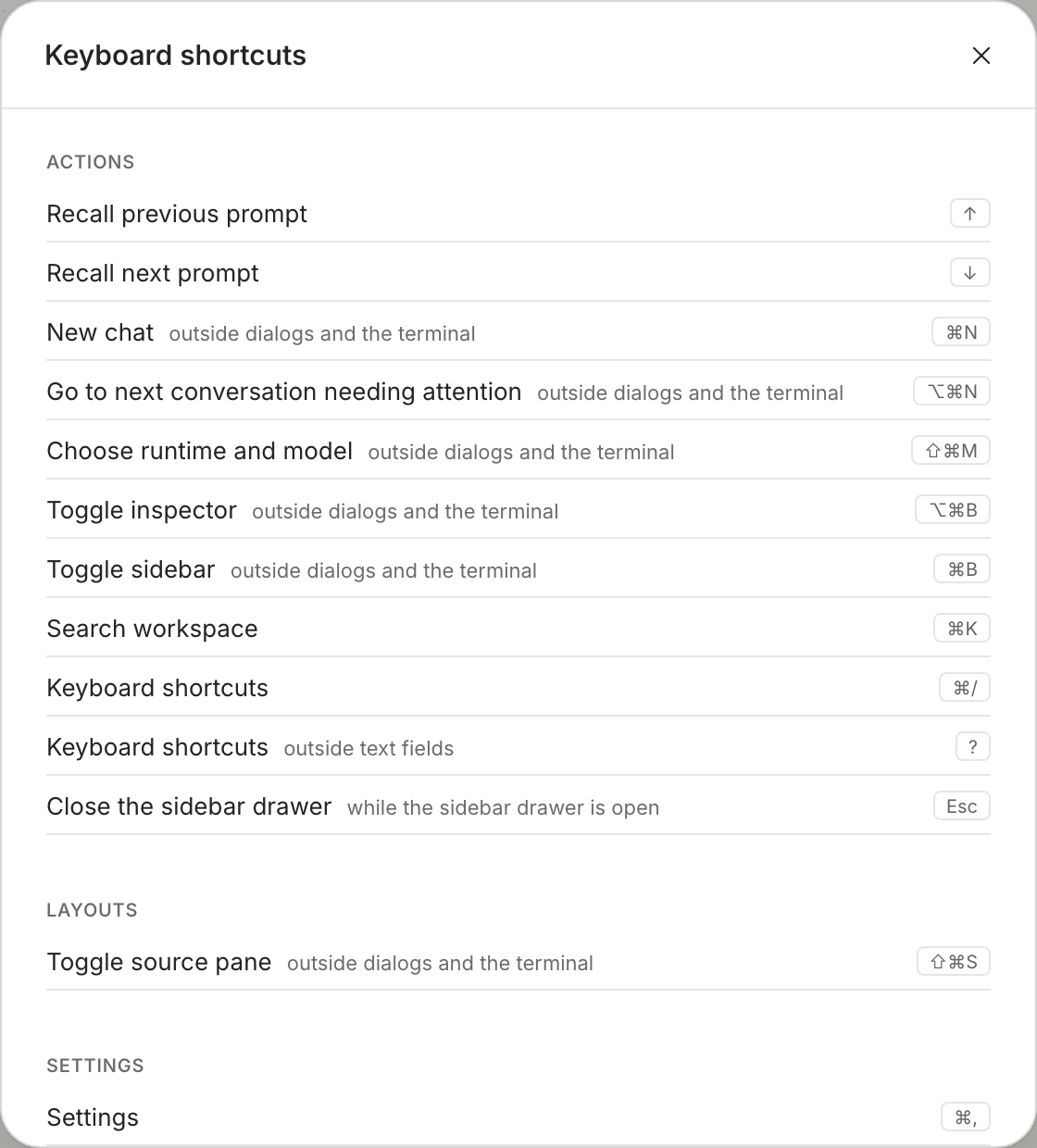
1 Keyboard shortcuts Read the bindings for your platform, then choose Close or press Esc to return to the workspace.

1 Close
| Action | macOS | Windows / Linux |
|---|---|---|
| Toggle source pane | ⌘ Shift S | Ctrl Shift S |
| New chat | ⌘ N | Ctrl N |
| Go to next conversation needing attention | ⌘ ⌥ N | Ctrl Alt N |
| Choose runtime and model | ⌘ Shift M | Ctrl Shift M |
| Toggle inspector | ⌘ ⌥ B | Ctrl Alt B |
| Toggle sidebar (Toggle explorer in the earlier layout) | ⌘ B | Ctrl B |
| Search workspace | ⌘ K | Ctrl K |
| Keyboard shortcuts | ⌘ / | Ctrl / |
| Keyboard shortcuts | ? | ? |
| Settings | ⌘ , | Ctrl , |
Most workspace actions yield when a terminal or modal dialog has focus. Search workspace, Settings, and the shortcuts dialog have global bindings. The ? shortcut only applies outside text fields, Terminal, and dialogs.
The source toggle uses Shift+S with Command or Control. There is no default key binding for every command: use workspace search for Reset layout, Open agent crew, Export graph, and the view commands.
Graph and panel focus
| Action | Key | Context |
|---|---|---|
| Find a layer | / | Graph focused, outside an editable field or dialog. |
| Next visible workspace region | F6 | No modal dialog. |
| Previous visible workspace region | Shift F6 | No modal dialog. |
| Step back / dismiss | Esc | Closes a menu, drawer, Crew, or temporary panel before clearing a selection. |
| Approve a tool request | ⌘ Enter / Ctrl Enter | A focused approval card or Crew row. Enter alone never approves; Esc on a card denies. The Inbox decides only by its buttons. |
F6 cycles the visible sidebar, chat, graph, inspector, and Crew regions. Hidden regions are skipped. A laptop may require its Fn modifier to send F6.
Composer
| Action | Key | Context |
|---|---|---|
| Recall previous prompt | ↑ | Composer focused, caret at the start, no text selected or dialog open. |
| Recall next prompt | ↓ | Composer focused, caret at the start, no text selected or dialog open. |
Move the caret to the start of the composer before recalling prompts. Elsewhere, the arrow keys keep their normal text-editing behavior.
Source diff review
These apply when focus is within a diff review, outside text fields, Terminal, and dialogs.
| Action | Key |
|---|---|
| Next changed file | J |
| Previous changed file | K |
| Next change hunk | N |
| Previous change hunk | Shift N |
| Expand or collapse the current file | O |
| Expand or collapse all changed files | Shift O |
Lineage nodes
With a Lineage node focused, use ← and → to move within a row, ↑ and ↓ to move to the nearest node in the adjacent row, and Home / End for the first / last node in the row. Enter or Space selects the node.
Find the rest
Workspace search opens with ⌘ / Ctrl K. Type a command name, use the arrow keys to move through results, and press Enter to choose. Esc closes the palette.
Native desktop menus use the same workspace command bindings. Shell shortcuts belong to your terminal; browser shortcuts may also take precedence in some environments.