Appearance
Workspace views
klars is organized around projects. A window has a title bar, a sidebar, the page you chose and, on a project's pages, the agent dock with that project's conversation.
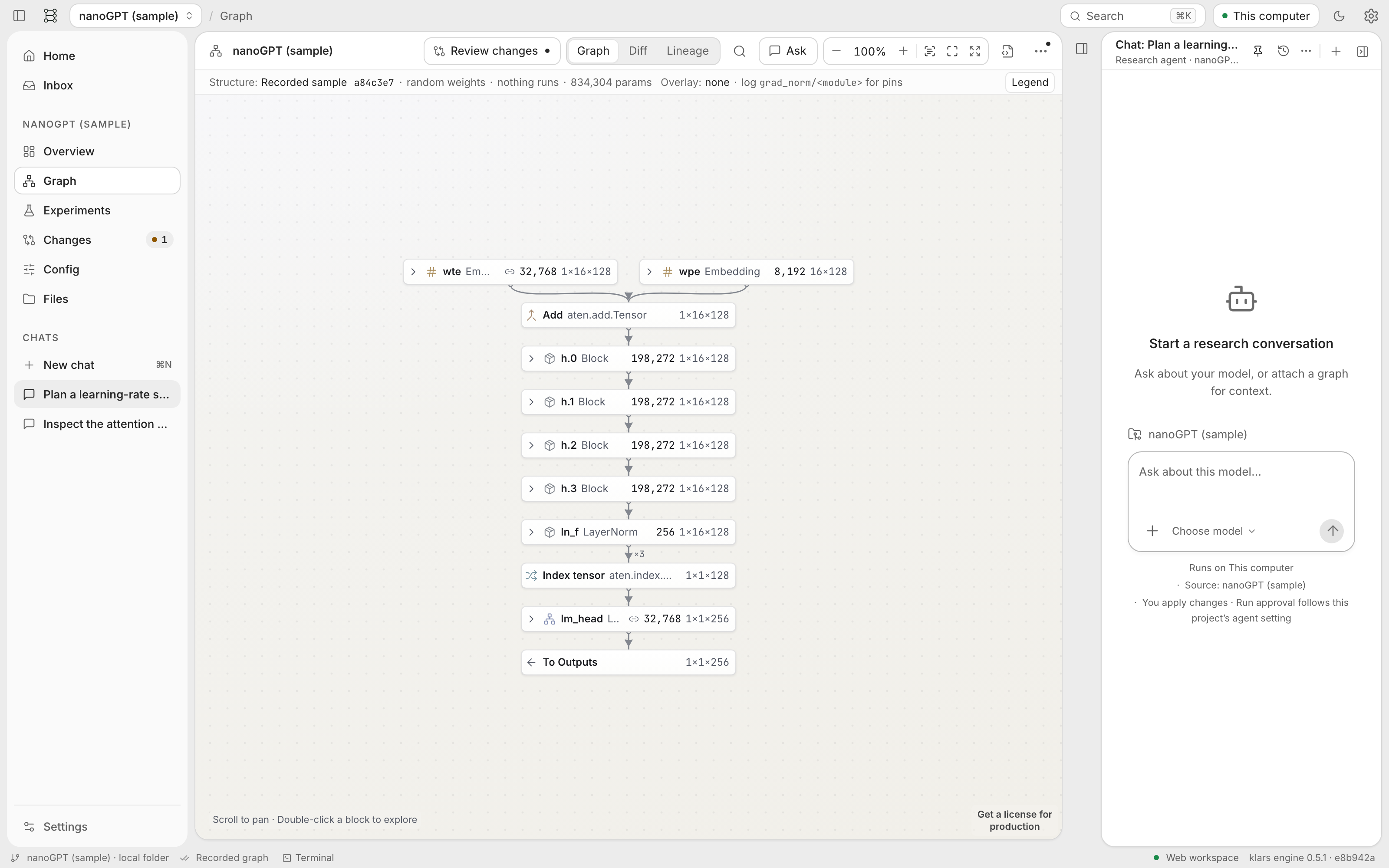
| Part | What is there |
|---|---|
| Title bar | The sidebar button, the klars mark (it returns Home), the project switcher and the current page, Search, Needs you when something waits for you, the compute chip, the theme button, and the app menu. |
| Sidebar | Home and Inbox; the open project's pages and chats, or your projects when no project is open; Settings at the bottom. |
| Page | The screen you chose. |
| Agent dock | The open project's conversation, beside every project page. |
Choose a page
Choose a page in the sidebar. The open project's pages are listed under its name.
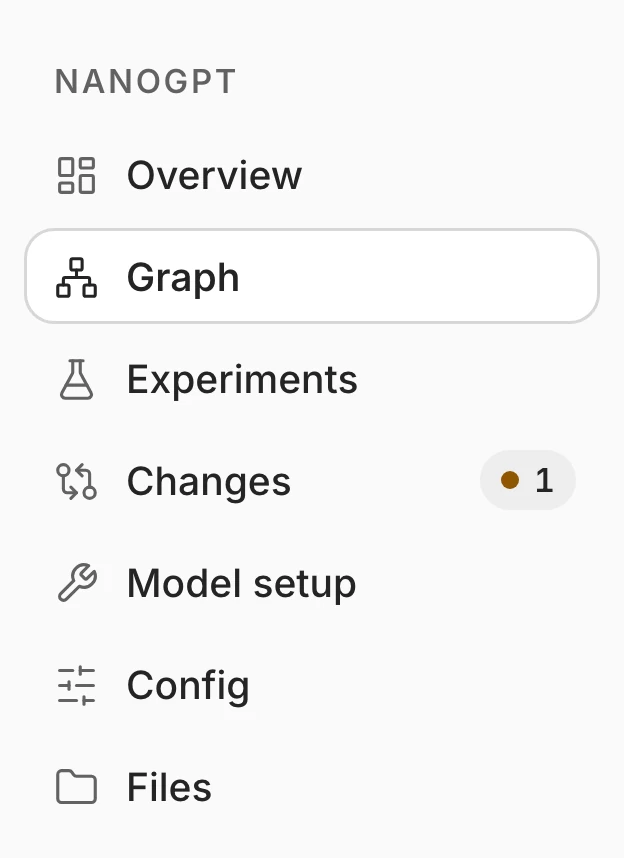
1 The project’s pages Choose a chat under Chats to open it in the agent dock, or choose New chat to start another conversation.
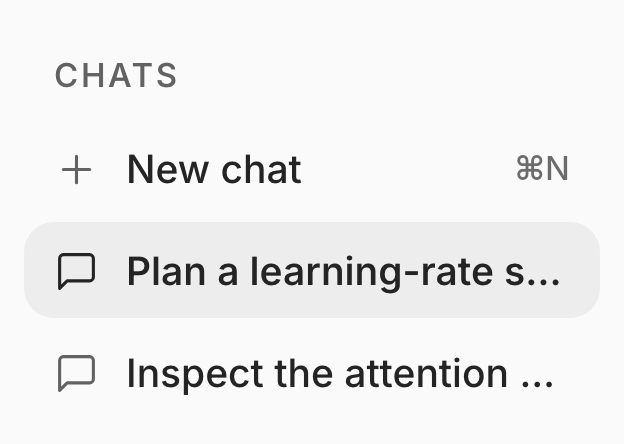
1 Open a saved chat2 New chat Choose Model setup in the sidebar to set up, capture, and run the model, or press ⌘ / Ctrl K and search for it.
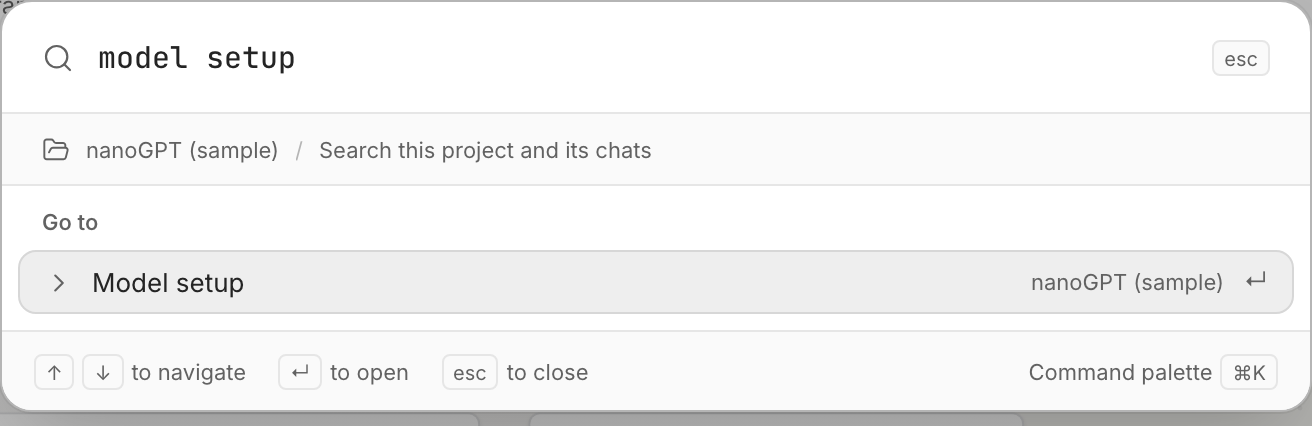
1 Model setup
| Page | Open it from | Use it for |
|---|---|---|
| Overview | Overview in the sidebar | See the project at a glance: ask the agent, check Graph, Experiments, Changes, and Config, and see what changed since your last visit. |
| Graph | Graph in the sidebar | Explore modules, connections, and captures. Diff in the graph toolbar compares saved captures or revisions. |
| Experiments | Experiments in the sidebar, or Lineage in the graph toolbar | Inspect logged metrics and run records in Runs. Follow relationships between runs, captures, and checkpoints in Lineage. |
| Changes | Changes in the sidebar | Review proposals, source drift, and source snapshots. |
| Model setup | Model setup in the sidebar, Search, Open as a page under Setup and scripts on Overview, or Model setup in Graph actions ⋯ | Set up the model, capture it, and run project scripts and jobs. For a project with no model yet, it starts with Prepare with agent and Configure manually. |
| Config | Config in the sidebar | See the project's model, environment, compute, training, and agent settings, and its config file. |
| Files | Files in the sidebar | Browse the project's source files. Choosing a file opens it on the Graph page. |
Model setup sits just above Config: Config shows the model and settings the project declares, and Model setup is where you find and set them up.
Search also keeps the earlier Build lens, Learn lens, Compare lens, Runs, and Lineage commands. They open Graph, Model setup, Changes, and the two Experiments views.
Use the agent dock
The project's conversation stays in the dock while you move between pages, so a draft or a reply in progress is kept. Choose Hide agent in the dock's header to hide it and Show agent at the right edge to bring it back. Drag its left edge to resize it.
Arrange your panels
On the Graph page, use Show source or Code only in Graph actions ⋯, or search for Model layout, Split layout, or Code layout. The inspector opens for a selection. Crew and Terminal share the area below the page.
Pin a supporting panel to keep it open. Unpin it to let the workspace manage it automatically. Search for Reset layout to restore automatic panels and default sizes; the same action is available in Settings.
In a window narrower than about 1,000 px, the sidebar and the agent dock open over the page instead of beside it. The floating sidebar keeps keyboard focus until you choose a destination or press Esc. Toolbar actions can move into ⋯ when space is tight.
Move by keyboard
Use F6 to move to the next visible region (the sidebar, chat, graph, inspector, and Crew), or Shift F6 to go backward. Esc closes a menu or temporary surface before clearing a selection. ⌘ / Ctrl B shows or hides the sidebar, and ⌘ / Ctrl N starts a chat in the open project.
Search with ⌘ / Ctrl K from anywhere. See the keyboard reference for the exact bindings and focus rules.
Resume your work
A new klars window opens Home. Its Pick up where you left off card names the project page you were on last; choose Resume to return to it. When something changed there since your last visit, the card lists it.
On a project's Overview, Since your last visit lists finished and failed runs, proposed changes, and approvals waiting for you. Choose a row to open it, or choose Mark as seen. Visits are not tracked for the bundled sample.
The address names the screen, for example ?p=<project>&page=graph, so a reload or a copied link opens the same screen. If that project no longer exists, klars opens a workspace screen instead. Resume markers are local to your browser profile; they are not cross-device sync.
Use the earlier layout
In the browser, add ?shell=classic to the address to use the earlier layout, with the explorer, tab panes, and the Build, Learn, Compare, Runs, and Lineage lenses. klars remembers the choice in that browser. Add ?shell=project to return to the default.